> ## Documentation Index
> Fetch the complete documentation index at: https://docs.repacket.com/llms.txt
> Use this file to discover all available pages before exploring further.
# Patterns
> Configure pattern-based detection for sensitive data
## Overview
Patterns enable you to detect sensitive data using predefined or custom pattern matching rules. These patterns can identify structured data formats like credit card numbers, Social Security Numbers, email addresses, and other sensitive information based on recognizable patterns and formats.
 ## How Patterns Work
Pattern-based detection uses regular expressions and predefined templates to identify sensitive information in content. This method is particularly effective for detecting structured data that follows consistent formats, such as:
* Credit card numbers (16-digit sequences with specific validation)
* Social Security Numbers (XXX-XX-XXXX format)
* Phone numbers (various international formats)
* Email addresses
* IP addresses
* Custom patterns specific to your organization
## Pattern Types
Use built-in patterns for common sensitive data types like SSNs, credit cards, and more.
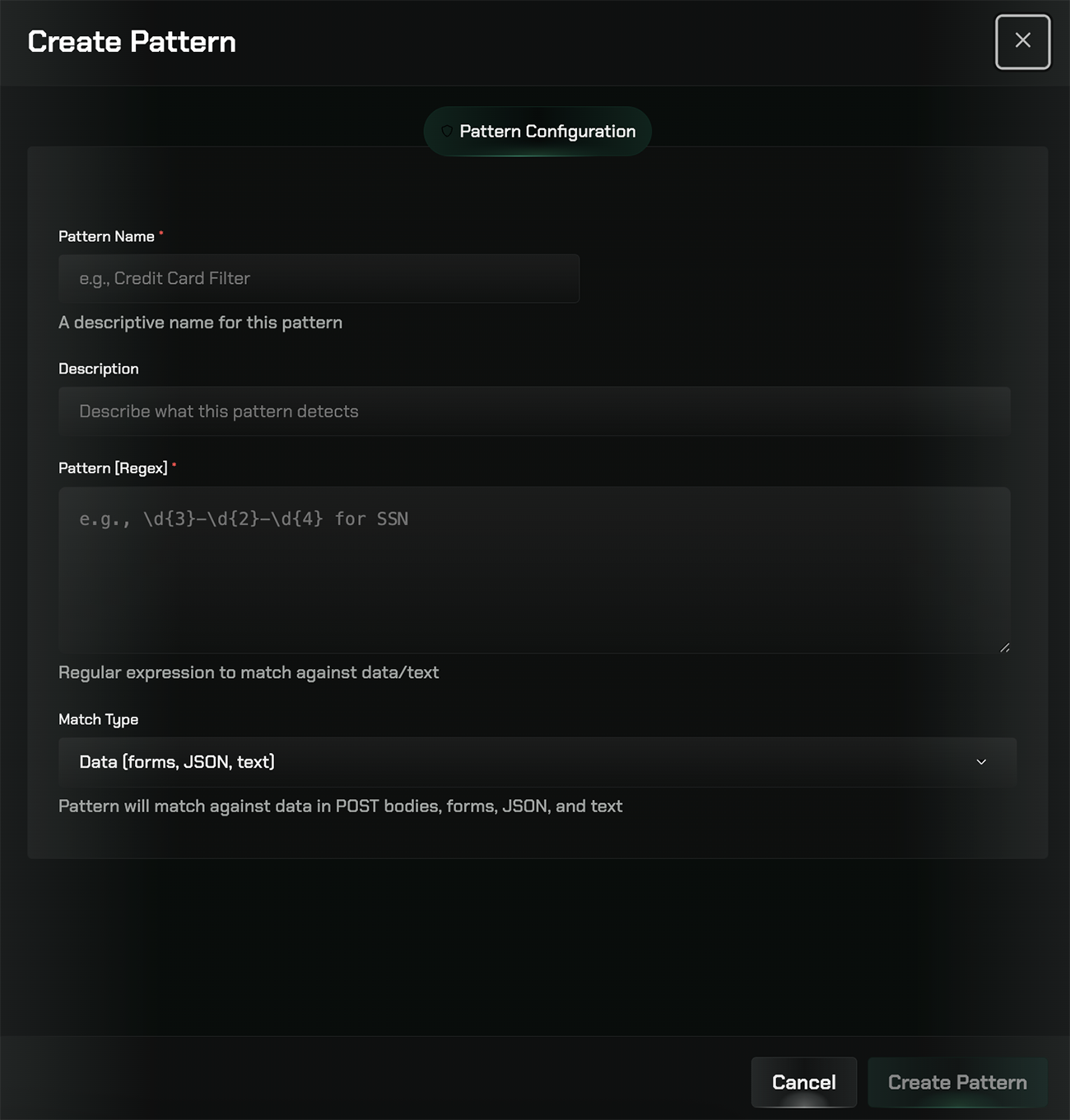
Create custom regex patterns to match organization-specific sensitive data formats.
## Creating Custom Patterns
Go to the [Data Loss Prevention](https://app.repacket.com/dlp) section and select the Patterns tab.
Click the "Create new pattern" button to define a custom detection pattern.
Enter a regular expression or use the pattern builder to define what should be detected.
Use the test feature to verify your pattern matches the intended data formats.
Apply your pattern to DLP rules to enable detection across your organization.
## Best Practices
Begin with built-in patterns for common data types before creating custom patterns.
Always test patterns against sample data to avoid false positives or negatives.
Use patterns alongside AI Filters for comprehensive sensitive data detection.
## Related Features
Configure DLP rules to safeguard sensitive data
Configure AI-powered detection filters for sensitive data
Test DLP filters against uploaded files before enforcing in production
## How Patterns Work
Pattern-based detection uses regular expressions and predefined templates to identify sensitive information in content. This method is particularly effective for detecting structured data that follows consistent formats, such as:
* Credit card numbers (16-digit sequences with specific validation)
* Social Security Numbers (XXX-XX-XXXX format)
* Phone numbers (various international formats)
* Email addresses
* IP addresses
* Custom patterns specific to your organization
## Pattern Types
Use built-in patterns for common sensitive data types like SSNs, credit cards, and more.
Create custom regex patterns to match organization-specific sensitive data formats.
## Creating Custom Patterns
Go to the [Data Loss Prevention](https://app.repacket.com/dlp) section and select the Patterns tab.
Click the "Create new pattern" button to define a custom detection pattern.
Enter a regular expression or use the pattern builder to define what should be detected.
Use the test feature to verify your pattern matches the intended data formats.
Apply your pattern to DLP rules to enable detection across your organization.
## Best Practices
Begin with built-in patterns for common data types before creating custom patterns.
Always test patterns against sample data to avoid false positives or negatives.
Use patterns alongside AI Filters for comprehensive sensitive data detection.
## Related Features
Configure DLP rules to safeguard sensitive data
Configure AI-powered detection filters for sensitive data
Test DLP filters against uploaded files before enforcing in production