> ## Documentation Index
> Fetch the complete documentation index at: https://docs.repacket.com/llms.txt
> Use this file to discover all available pages before exploring further.
# Rules
> Apply advanced controls to safeguard sensitive data
## Overview
The Data Loss Prevention (DLP) feature provides advanced controls to safeguard sensititive data online. Repacket recognizes sensitive data being uploaded to unapproved platforms and blocks it.
Today, Repacket enables organizations to detect and take action on a wide variety of sensitive data types.
Check employee uploads for any combination of PHI, and block it.
Identify any level of PII in uploads, from basic information to SSNs.
Repacket can recognize cardholder information and other sensitive corporate financial info.
Use Repacket to protect sensitive information of any kind - trade secrets, ITAR/EAR data, CUI, and more.
## How It Works
The DLP system operates by analyzing traffic based on the configured rules and applying specified actions when sensitive data is detected. Rules can be tailored to specific applications, users, and analysis types.
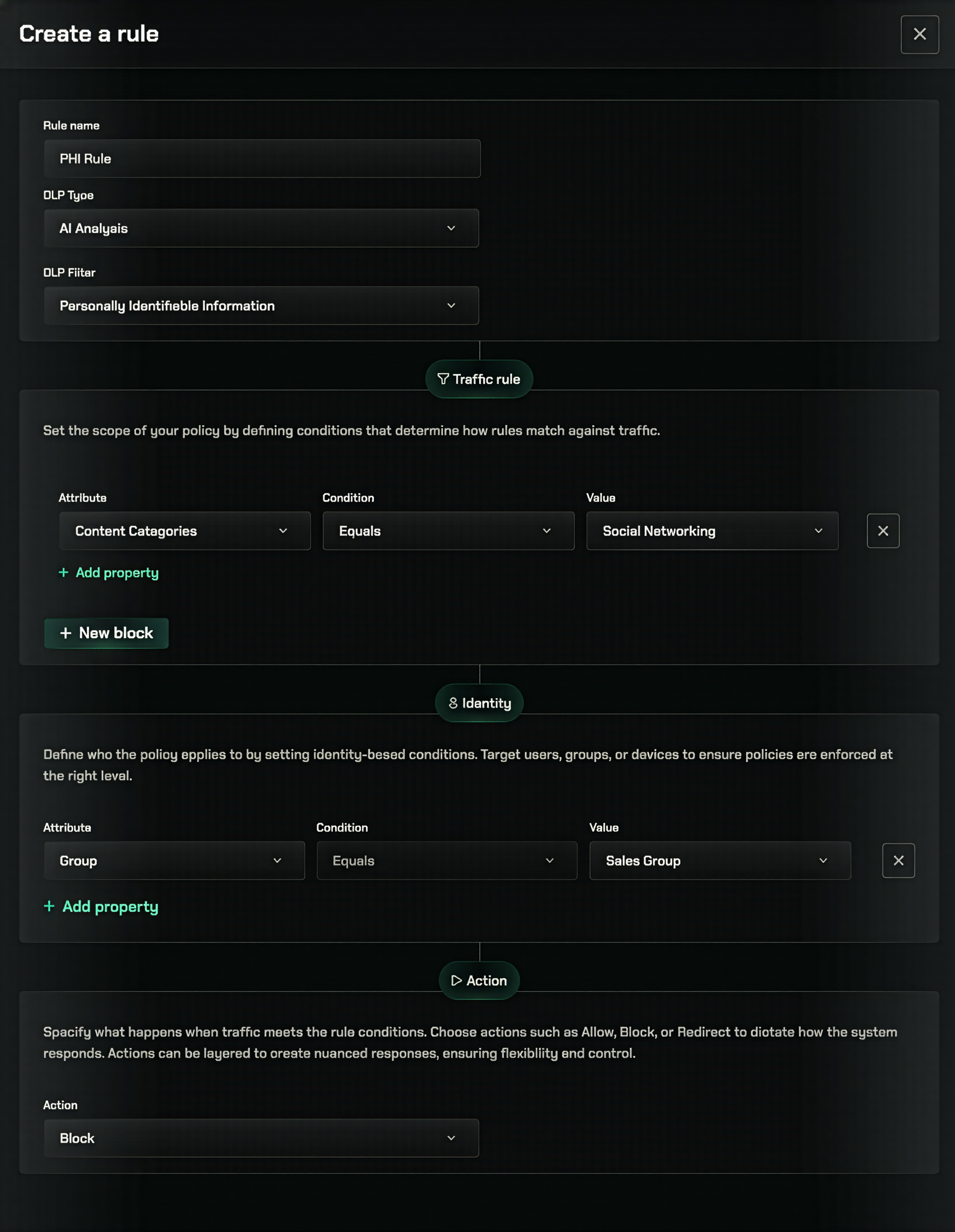 ## Creating DLP Rules
Go to the [Data Loss Prevention](https://app.repacket.com/dlp) section in your Repacket dashboard.
Click the "Create new rule" button in the top right corner.
Give your rule a descriptive name (e.g., "Block Healthcare Upload to ChatGPT").
Select what traffic properties or [categories](/config/categories) this should apply to.
Select users that this rule should or shouldn't apply to.
We suggest applying "Text and Uploads" for all rules to target plaintext and file-based content.
Select Allow, Warn or Block based on your security policy.
Warn actions can be configured to show a custom template, suggesting a company-approved alternative, for instance.
Apply your changes to enforce the new DLP rule across your network.
## Best Practices
Begin by applying DLP rules to high-risk applications like AI assistants and file sharing platforms.
Consider starting with Warn mode to understand detection patterns before moving to Block mode.
Define exceptions based on job roles rather than individuals when possible for easier management.
## Related Features
Configure AI-powered detection filters for sensitive data
Configure pattern-based detection for sensitive data
Test DLP filters against uploaded files before enforcing in production
## Creating DLP Rules
Go to the [Data Loss Prevention](https://app.repacket.com/dlp) section in your Repacket dashboard.
Click the "Create new rule" button in the top right corner.
Give your rule a descriptive name (e.g., "Block Healthcare Upload to ChatGPT").
Select what traffic properties or [categories](/config/categories) this should apply to.
Select users that this rule should or shouldn't apply to.
We suggest applying "Text and Uploads" for all rules to target plaintext and file-based content.
Select Allow, Warn or Block based on your security policy.
Warn actions can be configured to show a custom template, suggesting a company-approved alternative, for instance.
Apply your changes to enforce the new DLP rule across your network.
## Best Practices
Begin by applying DLP rules to high-risk applications like AI assistants and file sharing platforms.
Consider starting with Warn mode to understand detection patterns before moving to Block mode.
Define exceptions based on job roles rather than individuals when possible for easier management.
## Related Features
Configure AI-powered detection filters for sensitive data
Configure pattern-based detection for sensitive data
Test DLP filters against uploaded files before enforcing in production