> ## Documentation Index
> Fetch the complete documentation index at: https://docs.repacket.com/llms.txt
> Use this file to discover all available pages before exploring further.
# Firewall
> Control internet access by applying access rules to categories and domains
The Repacket Firewall provides fine-grained control over web access while maintaining flexibility for legitimate business needs.
## Overview
The Repacket Firewall allows administrators to control internet access by applying rules to different [categories](/config/categories), domains, and user groups. This core feature provides precise control over what web resources can be accessed across your organization.
Apply rules to entire [categories](/config/categories) of websites (e.g., Social Media, Gambling)
Choose between Allow, Block, or Warn for different levels of control
Create exceptions for specific users or groups that need different access
Build your own categories to meet your organization's unique needs
## How It Works
The Firewall operates by targeting internet traffic based on matching entities, and applying actions (allow, warn, block) as a result.
The "Identity" section of the rule builder can be used to target or make exceptions for different users and groups.
## Creating Firewall Rules
Go to the [Firewall section](https://app.repacket.com/gateway#firewall) in your Repacket dashboard.
Click the "Create new rule" button in the top right corner.
Select what traffic properties or [categories](/config/categories) this should apply to.
Select users that this rule should or shouldn't apply to.
Select Allow, Warn or Block based on your security policy.
Warn actions can be configured to show a custom template, suggesting a company-approved alternative, for instance.
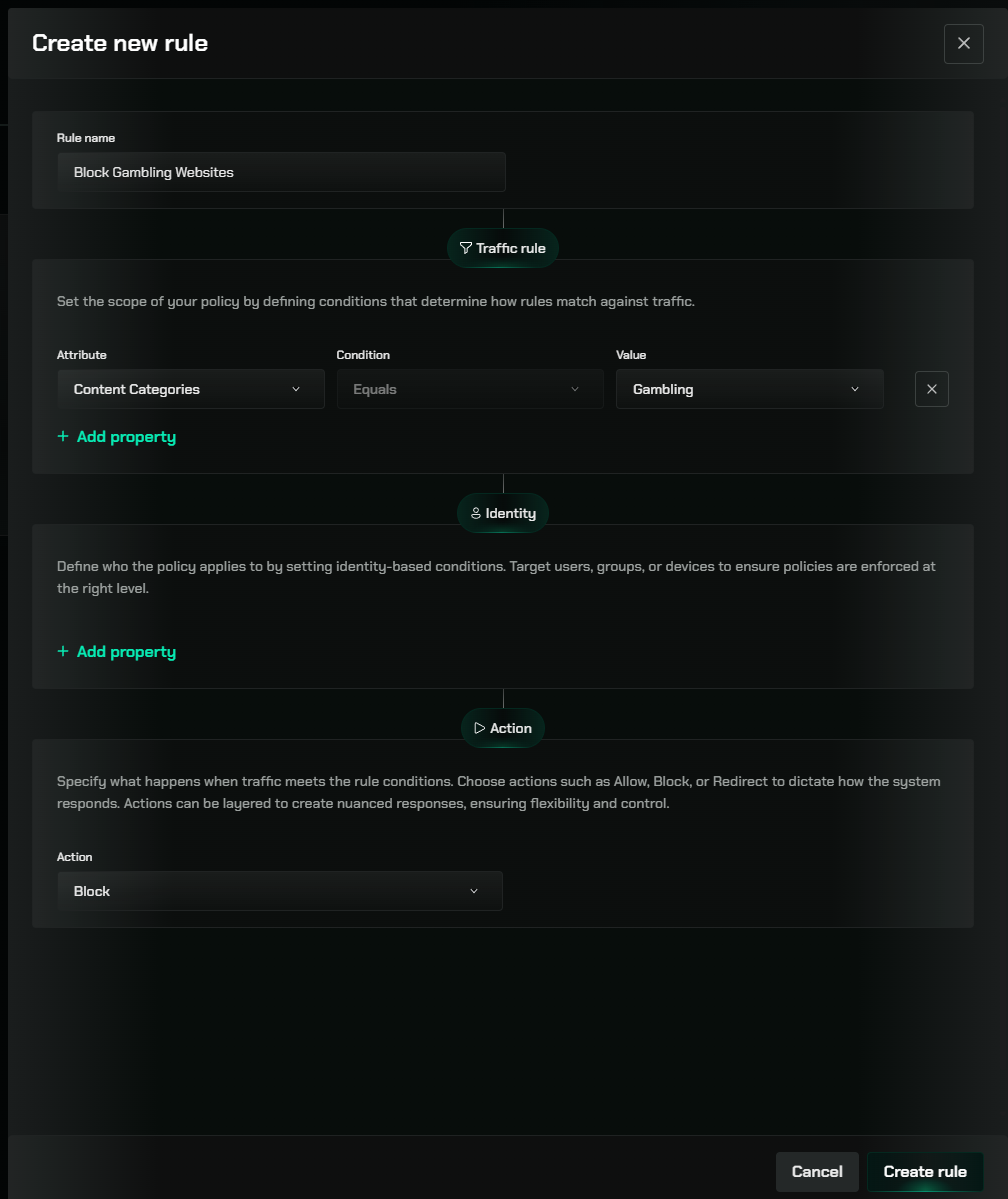 Apply your changes to enforce the new rule across your network.
## Best Practices
Begin by blocking high-risk [categories](/config/categories) like Malware, Phishing, and Adult Content to establish baseline protection.
For [categories](/config/categories) that may have legitimate business uses (like Social Media), consider using Warn mode instead of Block.
Define exceptions based on job roles rather than individuals when possible for easier management.
## Related Features
Enhanced protection against sophisticated phishing attacks
Allow temporary access to blocked categories when needed
Create your own categories for more granular control
Manage users and groups for exception handling
Apply your changes to enforce the new rule across your network.
## Best Practices
Begin by blocking high-risk [categories](/config/categories) like Malware, Phishing, and Adult Content to establish baseline protection.
For [categories](/config/categories) that may have legitimate business uses (like Social Media), consider using Warn mode instead of Block.
Define exceptions based on job roles rather than individuals when possible for easier management.
## Related Features
Enhanced protection against sophisticated phishing attacks
Allow temporary access to blocked categories when needed
Create your own categories for more granular control
Manage users and groups for exception handling