> ## Documentation Index
> Fetch the complete documentation index at: https://docs.repacket.com/llms.txt
> Use this file to discover all available pages before exploring further.
# Just-in-Time Exceptions
> Allow temporary access to blocked categories when needed
Just-in-Time (JIT) Exceptions provide a flexible way to grant temporary access to blocked resources while maintaining security policies.
## Overview
Just-in-Time Exceptions allow users to request temporary access to websites or [categories](/config/categories) that are blocked by your [Firewall rules](/modules/firewall). This feature provides a balance between security and productivity, enabling legitimate business needs while maintaining your organization's security posture.
Users can request temporary access directly from the block page
Exceptions automatically expire after a configured duration
Admins can review, approve, or deny exception requests
All exception requests and approvals are logged for compliance
## How It Works
Just-in-Time Exceptions provide a workflow for users to request temporary access to blocked resources. The process involves:
1. **Configuration**: Administrators enable exception requests in [Firewall rules](/modules/firewall)
2. **User Request**: Users encounter a block and can request an exception with a business justification
3. **Administrator Review**: Requests appear in the admin dashboard for review
4. **Temporary Access**: Approved exceptions grant access to the blocked resource
## User Experience: Requesting Exceptions
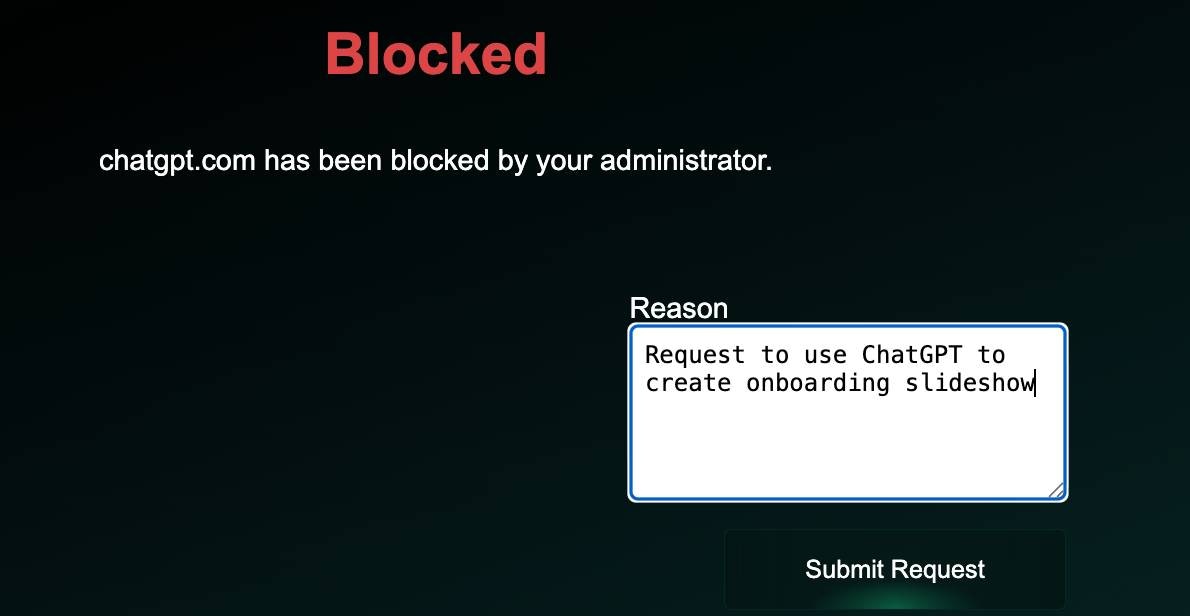
When users encounter a blocked website or [category](/config/categories), they see a block page with an option to request an exception. Users can click to request temporary access and provide a business justification for their request.
 ### How Users Request Exceptions
1. **User encounters a block**: When a [Firewall rule](/modules/firewall) blocks access, users see the block page
2. **Request exception**: Users click the "Request Access" button on the block page
3. **Provide justification**: Users can optionally provide a business justification explaining why they need access
4. **Submit request**: The request is submitted and appears in the admin dashboard for review
## Managing Exception Requests
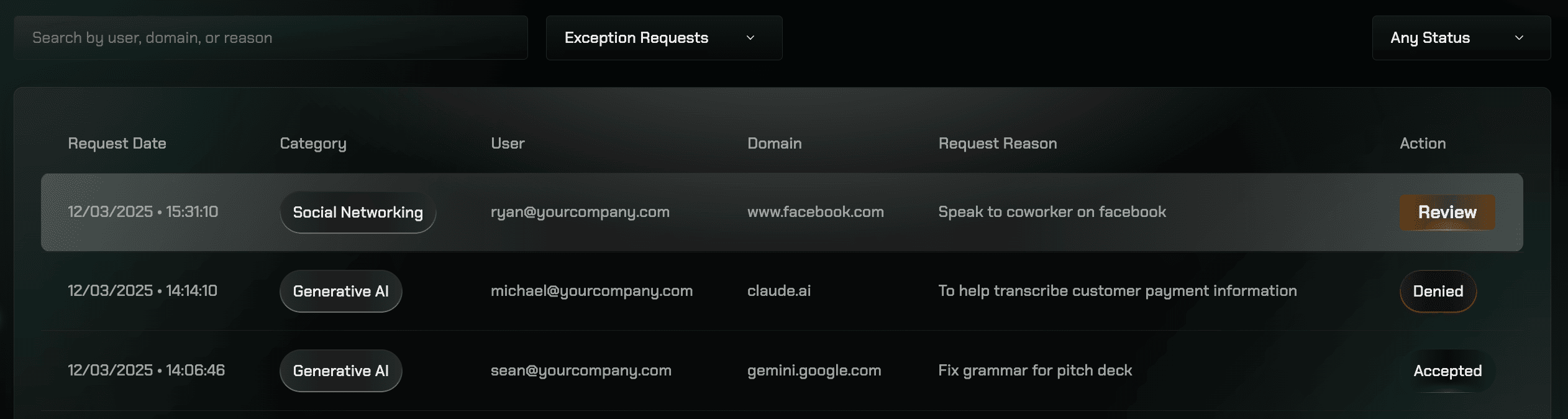
Administrators can review and manage exception requests from the [Exceptions dashboard](https://app.repacket.com/gateway#exceptions). The table displays all exception requests with their current status, and clicking on a request opens a panel where you can review details and take action.
The exception request table shows all requests that have been approved, denied, or are ready for review:
### How Users Request Exceptions
1. **User encounters a block**: When a [Firewall rule](/modules/firewall) blocks access, users see the block page
2. **Request exception**: Users click the "Request Access" button on the block page
3. **Provide justification**: Users can optionally provide a business justification explaining why they need access
4. **Submit request**: The request is submitted and appears in the admin dashboard for review
## Managing Exception Requests
Administrators can review and manage exception requests from the [Exceptions dashboard](https://app.repacket.com/gateway#exceptions). The table displays all exception requests with their current status, and clicking on a request opens a panel where you can review details and take action.
The exception request table shows all requests that have been approved, denied, or are ready for review:
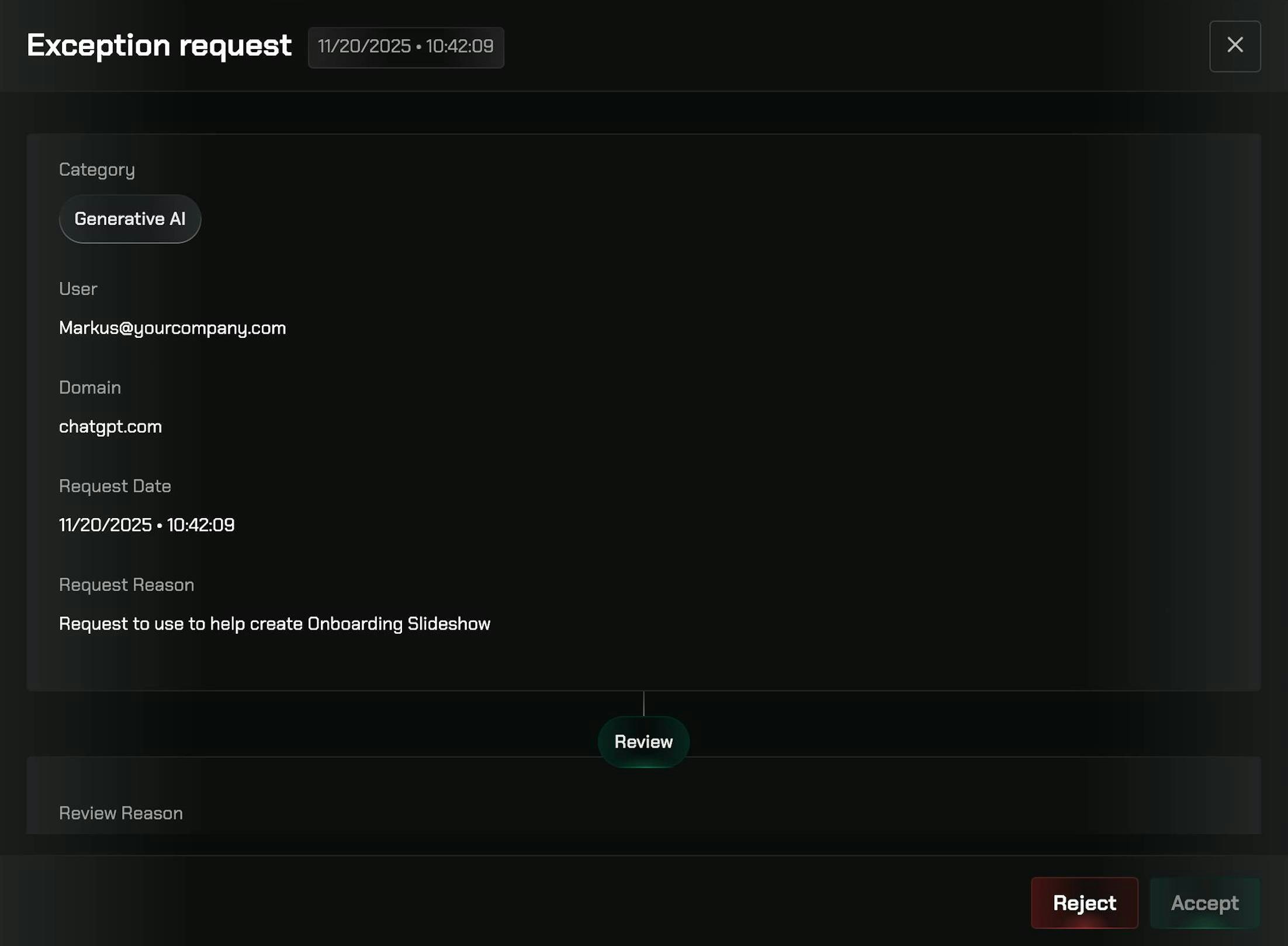
 Clicking on any request in the table opens a details panel where you can review the request and take action to approve or deny it:
 Go to the [Gateway section](https://app.repacket.com/gateway#exceptions) in your Repacket dashboard and select the "Exceptions" tab.
The table displays all exception requests showing:
* User who made the request
* Requested resource (domain or category)
* Status (Pending, Approved, Denied)
* Timestamp
* Business justification (if provided)
Click on any exception request in the table to open the details panel. The panel shows complete information about the request, including the user, resource, category, justification, and timestamp.
From the details panel, you can:
* **Approve**: Approve the request with a custom duration. Set how long the exception should last (e.g., 1 hour, 4 hours, 1 day)
* **Deny**: Deny requests that don't meet your security policy
View all active exceptions and their expiration times to track temporary access across your organization. Active exceptions are automatically removed when they expire.
## Best Practices
Configure JIT exceptions to require users to provide a business justification when requesting access. This helps administrators make informed decisions and creates an audit trail.
Use shorter durations (1-4 hours) for high-risk [categories](/config/categories) and longer durations (1 day) for lower-risk [categories](/config/categories) that may have legitimate business uses.
Regularly review exception requests to identify patterns. If certain [categories](/config/categories) or domains are frequently requested, consider creating permanent exceptions or adjusting your [Firewall rules](/modules/firewall).
For trusted user groups or low-risk [categories](/config/categories), consider enabling auto-approval to reduce administrative overhead while maintaining security.
Track which users and groups request the most exceptions to identify training opportunities or policy adjustments.
## Related Features
Control internet access with granular access rules
Manage users and groups for exception handling
Create your own categories for more granular control
Layer additional security protections on top of [firewall rules](/modules/firewall)
## Exception Rules Table
The Exception Rules table provides a comprehensive view of all exception requests and their current status. This table helps administrators track which denied requests are still active and monitor the overall exception landscape across your organization.
Go to the [Gateway section](https://app.repacket.com/gateway#exceptions) in your Repacket dashboard and select the "Exceptions" tab.
The table displays all exception requests showing:
* User who made the request
* Requested resource (domain or category)
* Status (Pending, Approved, Denied)
* Timestamp
* Business justification (if provided)
Click on any exception request in the table to open the details panel. The panel shows complete information about the request, including the user, resource, category, justification, and timestamp.
From the details panel, you can:
* **Approve**: Approve the request with a custom duration. Set how long the exception should last (e.g., 1 hour, 4 hours, 1 day)
* **Deny**: Deny requests that don't meet your security policy
View all active exceptions and their expiration times to track temporary access across your organization. Active exceptions are automatically removed when they expire.
## Best Practices
Configure JIT exceptions to require users to provide a business justification when requesting access. This helps administrators make informed decisions and creates an audit trail.
Use shorter durations (1-4 hours) for high-risk [categories](/config/categories) and longer durations (1 day) for lower-risk [categories](/config/categories) that may have legitimate business uses.
Regularly review exception requests to identify patterns. If certain [categories](/config/categories) or domains are frequently requested, consider creating permanent exceptions or adjusting your [Firewall rules](/modules/firewall).
For trusted user groups or low-risk [categories](/config/categories), consider enabling auto-approval to reduce administrative overhead while maintaining security.
Track which users and groups request the most exceptions to identify training opportunities or policy adjustments.
## Related Features
Control internet access with granular access rules
Manage users and groups for exception handling
Create your own categories for more granular control
Layer additional security protections on top of [firewall rules](/modules/firewall)
## Exception Rules Table
The Exception Rules table provides a comprehensive view of all exception requests and their current status. This table helps administrators track which denied requests are still active and monitor the overall exception landscape across your organization.
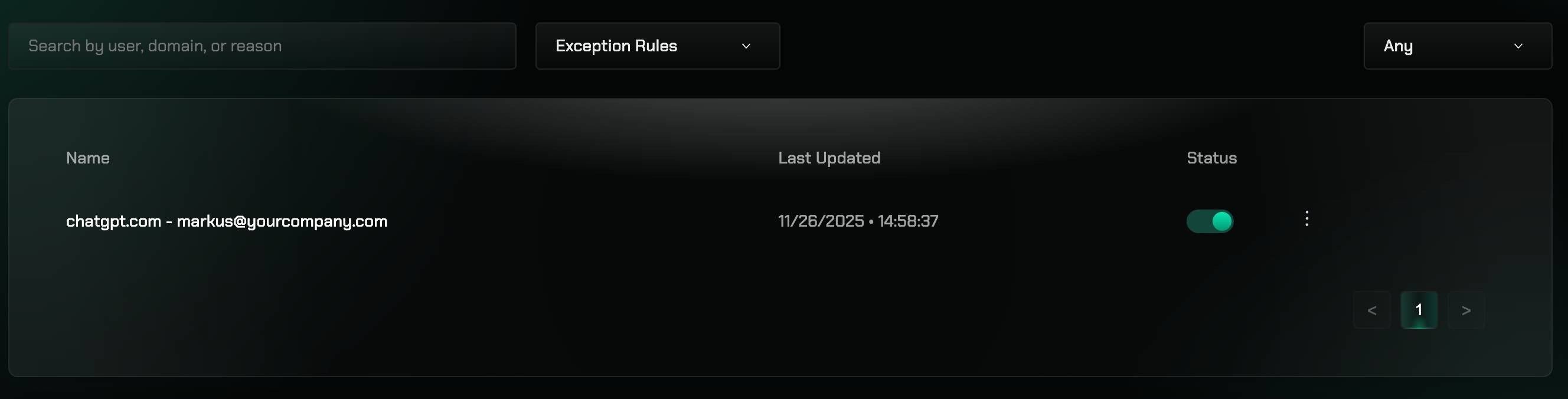 The Exception Rules table displays:
* **Request Details**: User, requested resource, category, and business justification
* **Status**: Current status of each exception request (Pending, Approved, Denied)
* **Timestamps**: When requests were made and last updated
* **Active Exceptions**: Shows which denied requests are still active and need attention
Use this table to:
* Review all exception requests in one place
* Identify which denied requests remain active
* Monitor exception patterns and trends
* Track the lifecycle of exception requests from submission to expiration
The Exception Rules table displays:
* **Request Details**: User, requested resource, category, and business justification
* **Status**: Current status of each exception request (Pending, Approved, Denied)
* **Timestamps**: When requests were made and last updated
* **Active Exceptions**: Shows which denied requests are still active and need attention
Use this table to:
* Review all exception requests in one place
* Identify which denied requests remain active
* Monitor exception patterns and trends
* Track the lifecycle of exception requests from submission to expiration