> ## Documentation Index
> Fetch the complete documentation index at: https://docs.repacket.com/llms.txt
> Use this file to discover all available pages before exploring further.
# Templates
> Create and customize firewall block and warning page templates
Templates allow you to customize the appearance and messaging of firewall block and warning pages to match your organization's branding and communication style.
## Overview
Templates enable you to customize the user-facing pages that appear when [Firewall](/modules/firewall) rules block or warn users about restricted content. You can personalize the title, description, and styling to align with your organization's brand and provide clear, consistent messaging to your users.
 Customize titles and descriptions to match your organization's communication style
Apply your brand colors with solid or gradient backgrounds
See exactly how your template will appear to users before saving
Create separate templates for Block and Warn actions
## Template Types
Repacket supports different template types for various firewall actions:
* **Firewall Block**: Displayed when a Block rule prevents access to a website or category
* **Firewall Warn**: Displayed when a Warn rule alerts users about potentially restricted content
Each template type can be customized independently, allowing you to have different messaging and styling for blocks versus warnings.
## Managing Templates
The Templates page displays all available templates in a table format, showing:
* **Template Type**: The type of template (e.g., Firewall Block, Firewall Warn)
* **Rule Type**: The category of rule this template applies to
* **Content**: A preview of the title and description text
* **Last Updated**: When the template was last modified
* **Preview**: Button to preview how the template appears to users
* **Edit**: Button to modify the template
## Creating and Editing Templates
Go to the Templates section in your Repacket dashboard.
Click the "Edit" button next to the template type you want to customize (e.g., Firewall Block or Firewall Warn).
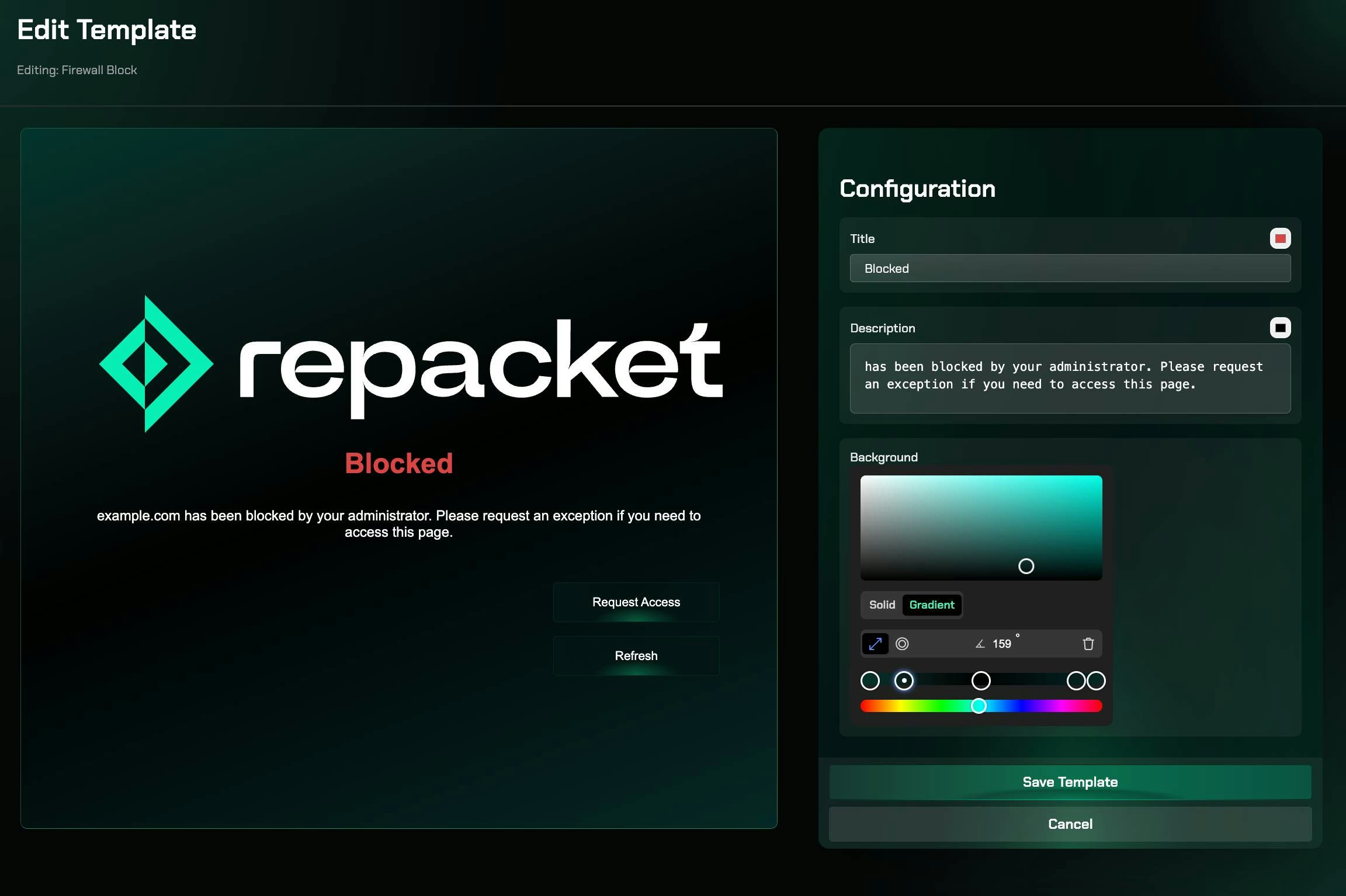
In the Title field, enter the heading that will appear at the top of the page (e.g., "Blocked" or "Warning").
In the Description field, enter the message that will be displayed to users. This message will automatically include the domain or category name that was blocked.
For example: "has been blocked by your administrator. Please request an exception if you need to access this page."
Choose between a solid color or gradient background:
* **Solid**: Select a single color for the background
* **Gradient**: Create a gradient effect with multiple colors and adjust the angle (e.g., 159°)
Use the color picker to select your brand colors, or choose from the color swatches.
The left side of the editor shows a live preview of how your template will appear to users. Review the preview to ensure the styling and messaging look correct.
Click "Save Template" to apply your changes. The template will immediately be used for all new firewall rules of that type.
## Template Configuration Options
### Title and Description
* **Title**: The main heading displayed on the blocked/warned page. Keep it concise and clear (e.g., "Blocked", "Warning", "Access Restricted").
* **Description**: The explanatory text that appears below the title. This text will automatically include the domain or category name that triggered the rule.
### Background Styling
**Solid Background:**
* Select a single color for a uniform background
* Useful for simple, clean designs that match your brand
**Gradient Background:**
* Create multi-color gradients for a more dynamic appearance
* Adjust the gradient angle to control the direction of the color transition
* Add or remove color stops to create complex gradient effects
* Use the color spectrum slider to fine-tune color selection
### Color Selection
The template editor provides multiple ways to select colors:
* **Color Picker**: Click anywhere in the color picker to select a color
* **Color Swatches**: Quick access to recently used or preset colors
* **Color Spectrum Slider**: Fine-tune your color selection across the full spectrum
## Best Practices
Write descriptions that clearly explain why access was blocked and what actions users can take (e.g., request an exception, contact IT support).
Use your organization's brand colors and maintain consistency with your other communications. This helps users recognize legitimate security messages.
Consider using gradients for a modern look, or solid colors for better readability. Ensure text remains legible against your chosen background.
Use distinct styling or messaging for Block templates versus Warn templates so users can quickly understand the severity of the restriction.
Ensure your template descriptions guide users to available actions, such as "Request Access" buttons that appear on the blocked page.
## Related Features
Configure firewall rules that use these templates
Allow users to request temporary access from blocked pages
Create categories that can be referenced in template messages
Manage users who will see these templates
Customize titles and descriptions to match your organization's communication style
Apply your brand colors with solid or gradient backgrounds
See exactly how your template will appear to users before saving
Create separate templates for Block and Warn actions
## Template Types
Repacket supports different template types for various firewall actions:
* **Firewall Block**: Displayed when a Block rule prevents access to a website or category
* **Firewall Warn**: Displayed when a Warn rule alerts users about potentially restricted content
Each template type can be customized independently, allowing you to have different messaging and styling for blocks versus warnings.
## Managing Templates
The Templates page displays all available templates in a table format, showing:
* **Template Type**: The type of template (e.g., Firewall Block, Firewall Warn)
* **Rule Type**: The category of rule this template applies to
* **Content**: A preview of the title and description text
* **Last Updated**: When the template was last modified
* **Preview**: Button to preview how the template appears to users
* **Edit**: Button to modify the template
## Creating and Editing Templates
Go to the Templates section in your Repacket dashboard.
Click the "Edit" button next to the template type you want to customize (e.g., Firewall Block or Firewall Warn).
In the Title field, enter the heading that will appear at the top of the page (e.g., "Blocked" or "Warning").
In the Description field, enter the message that will be displayed to users. This message will automatically include the domain or category name that was blocked.
For example: "has been blocked by your administrator. Please request an exception if you need to access this page."
Choose between a solid color or gradient background:
* **Solid**: Select a single color for the background
* **Gradient**: Create a gradient effect with multiple colors and adjust the angle (e.g., 159°)
Use the color picker to select your brand colors, or choose from the color swatches.
The left side of the editor shows a live preview of how your template will appear to users. Review the preview to ensure the styling and messaging look correct.
Click "Save Template" to apply your changes. The template will immediately be used for all new firewall rules of that type.
## Template Configuration Options
### Title and Description
* **Title**: The main heading displayed on the blocked/warned page. Keep it concise and clear (e.g., "Blocked", "Warning", "Access Restricted").
* **Description**: The explanatory text that appears below the title. This text will automatically include the domain or category name that triggered the rule.
### Background Styling
**Solid Background:**
* Select a single color for a uniform background
* Useful for simple, clean designs that match your brand
**Gradient Background:**
* Create multi-color gradients for a more dynamic appearance
* Adjust the gradient angle to control the direction of the color transition
* Add or remove color stops to create complex gradient effects
* Use the color spectrum slider to fine-tune color selection
### Color Selection
The template editor provides multiple ways to select colors:
* **Color Picker**: Click anywhere in the color picker to select a color
* **Color Swatches**: Quick access to recently used or preset colors
* **Color Spectrum Slider**: Fine-tune your color selection across the full spectrum
## Best Practices
Write descriptions that clearly explain why access was blocked and what actions users can take (e.g., request an exception, contact IT support).
Use your organization's brand colors and maintain consistency with your other communications. This helps users recognize legitimate security messages.
Consider using gradients for a modern look, or solid colors for better readability. Ensure text remains legible against your chosen background.
Use distinct styling or messaging for Block templates versus Warn templates so users can quickly understand the severity of the restriction.
Ensure your template descriptions guide users to available actions, such as "Request Access" buttons that appear on the blocked page.
## Related Features
Configure firewall rules that use these templates
Allow users to request temporary access from blocked pages
Create categories that can be referenced in template messages
Manage users who will see these templates