> ## Documentation Index
> Fetch the complete documentation index at: https://docs.repacket.com/llms.txt
> Use this file to discover all available pages before exploring further.
# Jamf
> Deploy Repacket to your macOS fleet using Jamf Pro.
export const Highlight = ({text}) => {text};
# Overview
This guide will walk you through deploying Repacket to your macOS devices using Jamf Pro.
Jamf deployment has two main components:
1. **MDM Profile**: a configuration profile that contains the certificate, system extension, VPN / Network Extension, and privacy permissions so users never see a pop-up.
2. **Managed Installation**: a Jamf policy that silently installs the Repacket macOS app on your endpoints.
## Deploying
Download both the configuration profile and installer package to your computer. You’ll upload these into Jamf Pro in the next steps.
In your Jamf Pro dashboard, navigate to\
→ → .
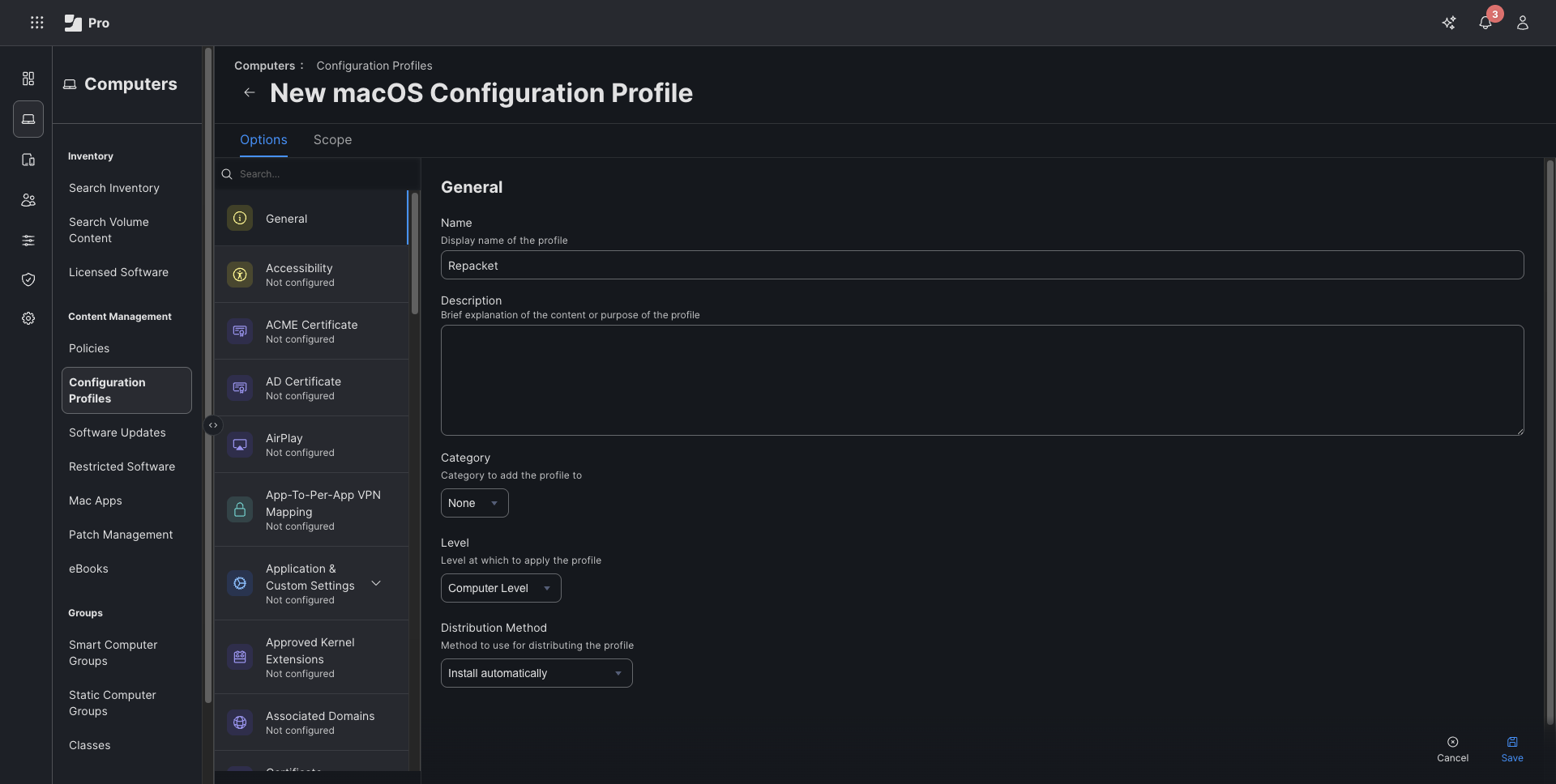
On the tab:
* Set a name like .
* Select and choose the downloaded `.mobileconfig` file.
 With the profile created, go to the tab.
* Under , add the smart groups or specific computers that should receive Repacket.
* (Optional) Start with a test group first, then expand to your full fleet.
Save the profile.
On a scoped device, you should see the Repacket profile listed in macOS under\
→ → .
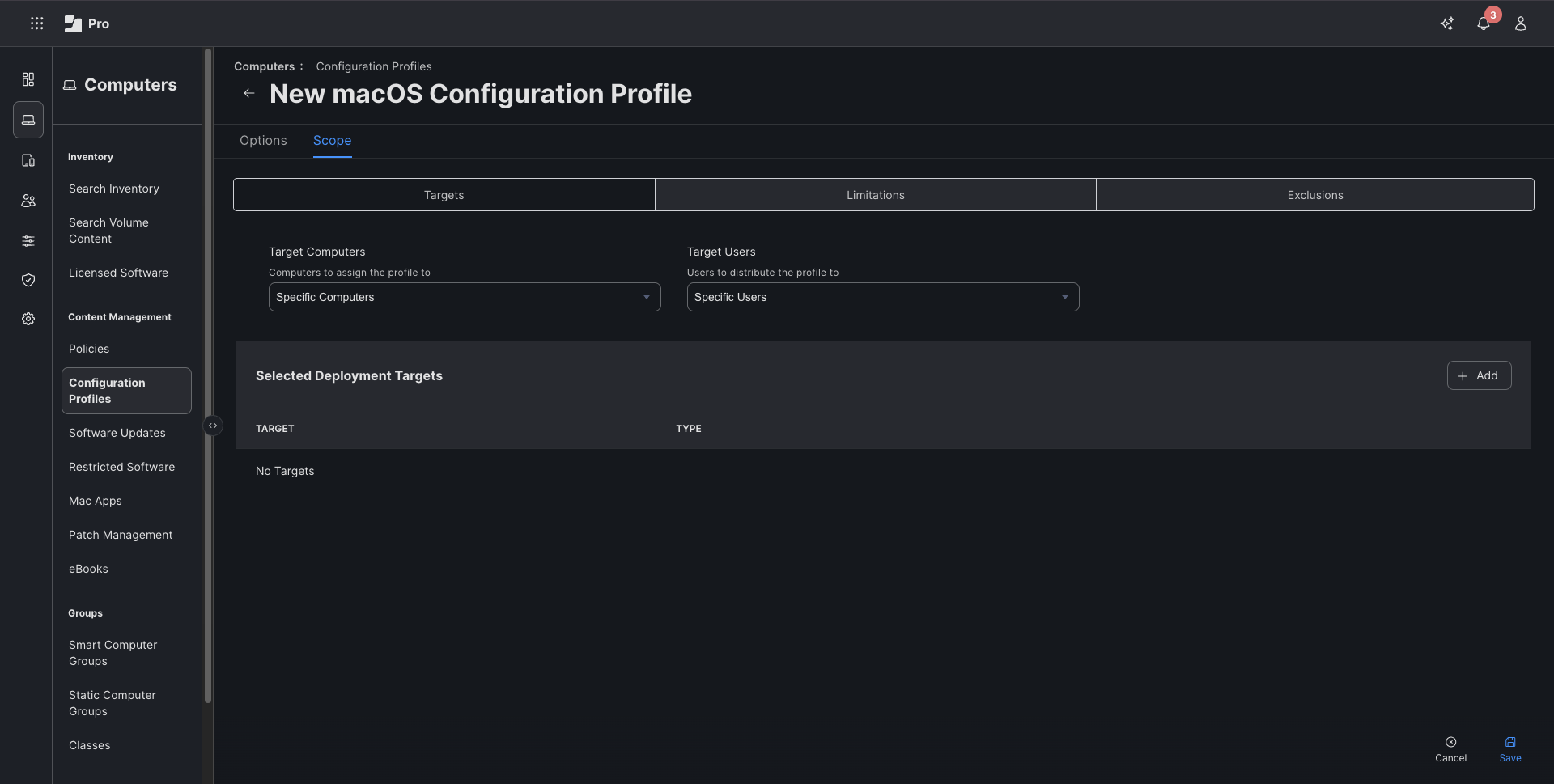
With the profile created, go to the tab.
* Under , add the smart groups or specific computers that should receive Repacket.
* (Optional) Start with a test group first, then expand to your full fleet.
Save the profile.
On a scoped device, you should see the Repacket profile listed in macOS under\
→ → .
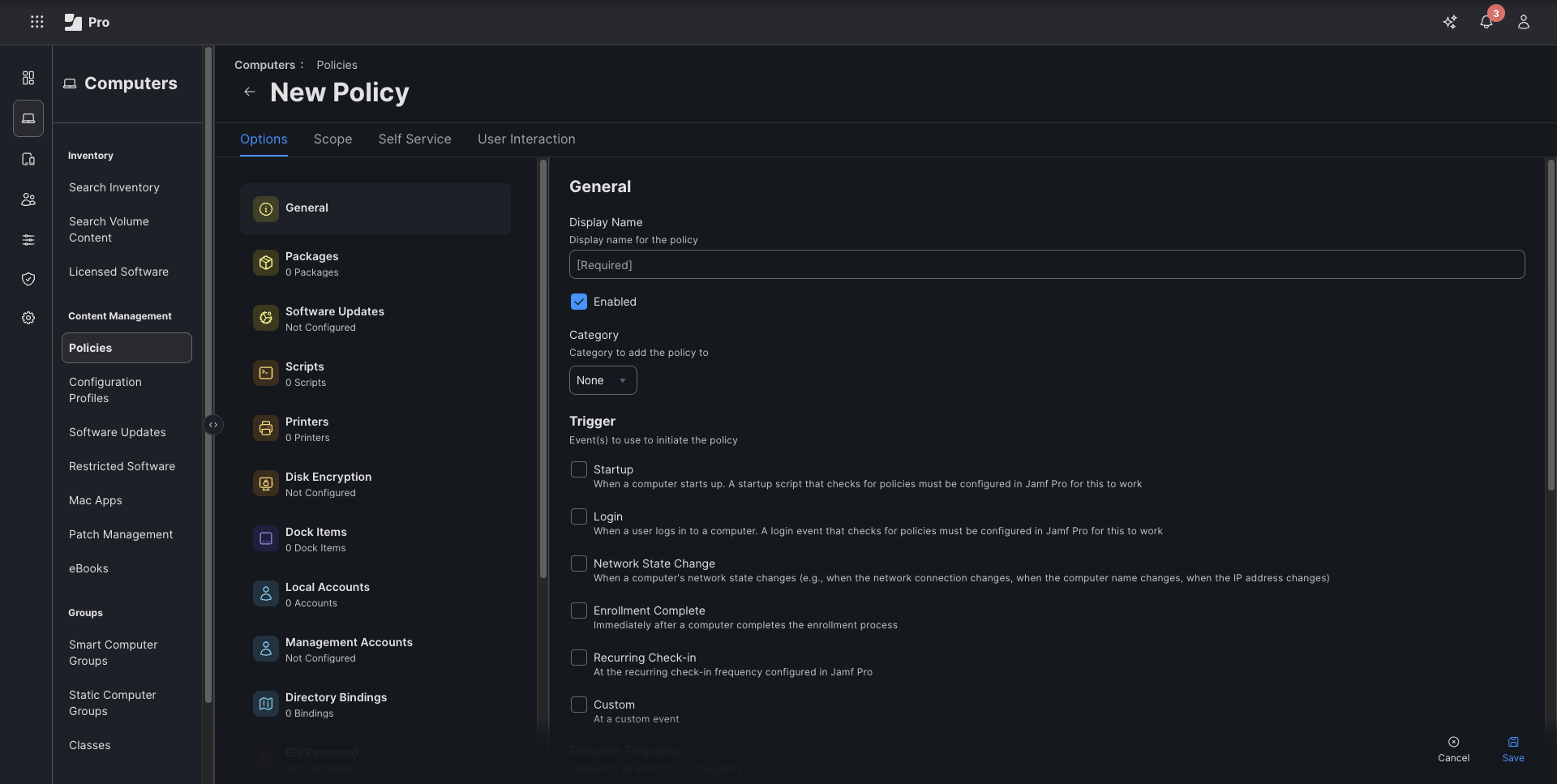
 Create a [Jamf Package Deployment](https://learn.jamf.com/en-US/bundle/jamf-pro-documentation-current/page/Package_Deployment.html) and upload the installation pkg.
Next, scope the target machines you want to install to and send. The scoped devices will install the package, and require no manual intervention.
Create a [Jamf Package Deployment](https://learn.jamf.com/en-US/bundle/jamf-pro-documentation-current/page/Package_Deployment.html) and upload the installation pkg.
Next, scope the target machines you want to install to and send. The scoped devices will install the package, and require no manual intervention.
 Once devices receive both:
1. The **Repacket configuration profile**, and
2. The **Repacket installer policy**,
Repacket will be silently installed and fully permitted on your Jamf-managed Macs. New machines added to your scoped groups will automatically receive Repacket without any user pop-ups.
Once devices receive both:
1. The **Repacket configuration profile**, and
2. The **Repacket installer policy**,
Repacket will be silently installed and fully permitted on your Jamf-managed Macs. New machines added to your scoped groups will automatically receive Repacket without any user pop-ups.