

Just-in-Time (JIT) Exceptions provide a flexible way to grant temporary access to blocked resources while maintaining security policies.
Overview
Just-in-Time Exceptions allow users to request temporary access to websites or categories that are blocked by your Firewall rules. This feature provides a balance between security and productivity, enabling legitimate business needs while maintaining your organization’s security posture.User-Initiated Requests
Users can request temporary access directly from the block page
Time-Limited Access
Exceptions automatically expire after a configured duration
Administrator Review
Admins can review, approve, or deny exception requests
Audit Trail
All exception requests and approvals are logged for compliance
How It Works
Just-in-Time Exceptions provide a workflow for users to request temporary access to blocked resources. The process involves:- Configuration: Administrators enable exception requests in Firewall rules
- User Request: Users encounter a block and can request an exception with a business justification
- Administrator Review: Requests appear in the admin dashboard for review
- Temporary Access: Approved exceptions grant access to the blocked resource
User Experience: Requesting Exceptions
When users encounter a blocked website or category, they see a block page with an option to request an exception. Users can click to request temporary access and provide a business justification for their request.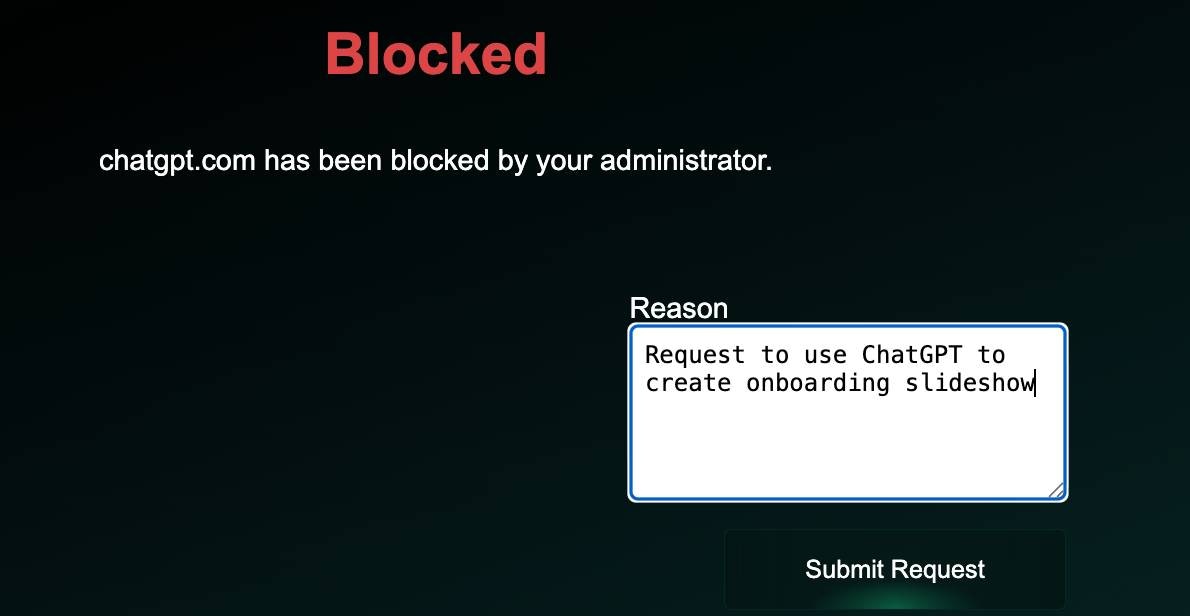
How Users Request Exceptions
- User encounters a block: When a Firewall rule blocks access, users see the block page
- Request exception: Users click the “Request Access” button on the block page
- Provide justification: Users can optionally provide a business justification explaining why they need access
- Submit request: The request is submitted and appears in the admin dashboard for review
Managing Exception Requests
Administrators can review and manage exception requests from the Exceptions dashboard. The table displays all exception requests with their current status, and clicking on a request opens a panel where you can review details and take action. The exception request table shows all requests that have been approved, denied, or are ready for review: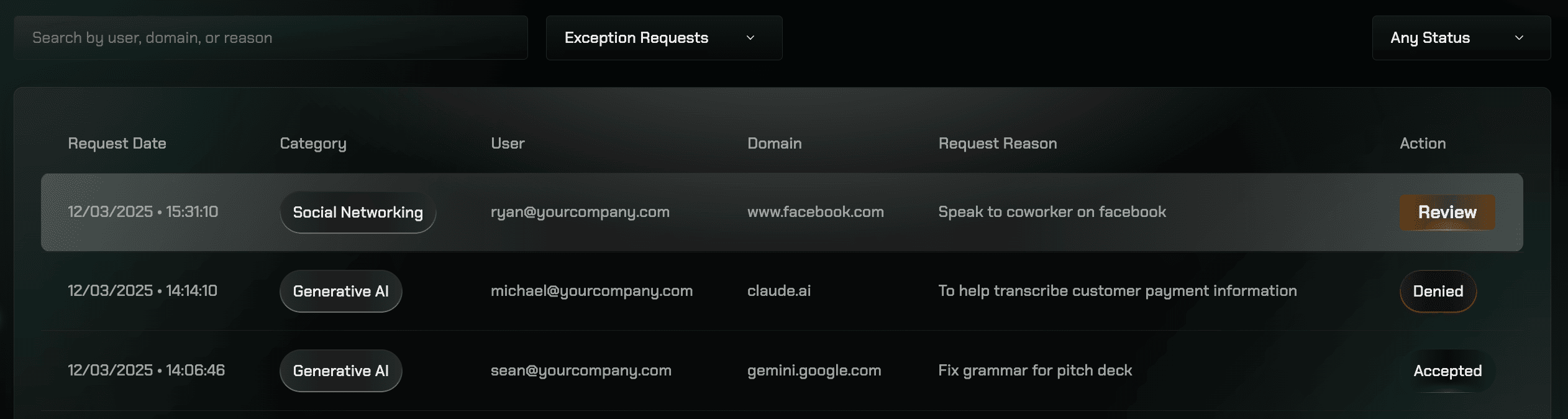
1
Navigate to Exceptions
Go to the Gateway section in your Repacket dashboard and select the “Exceptions” tab.
2
View exception requests
The table displays all exception requests showing:
- User who made the request
- Requested resource (domain or category)
- Status (Pending, Approved, Denied)
- Timestamp
- Business justification (if provided)
3
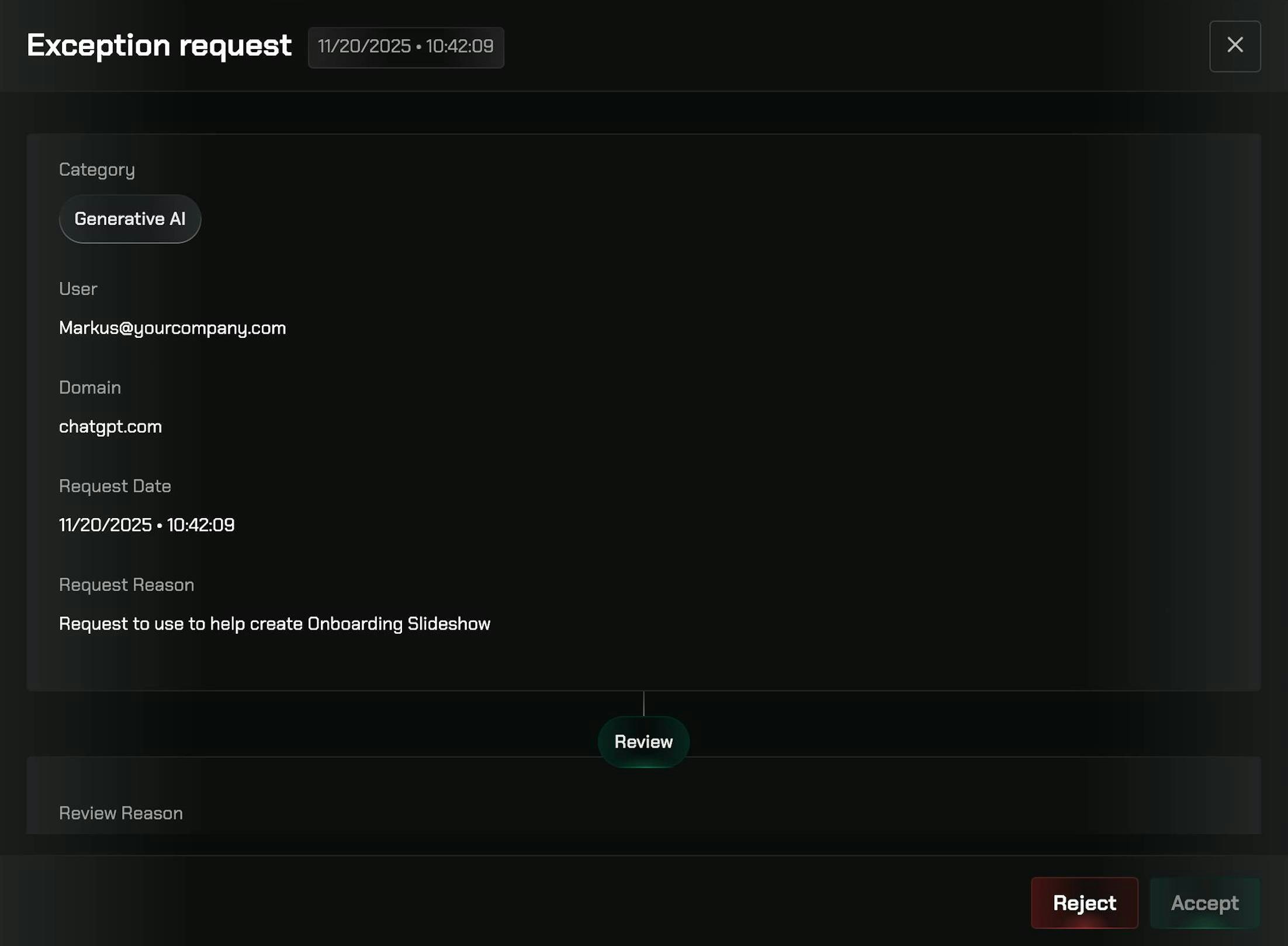
Review request details
Click on any exception request in the table to open the details panel. The panel shows complete information about the request, including the user, resource, category, justification, and timestamp.
4
Approve or deny requests
From the details panel, you can:
- Approve: Approve the request with a custom duration. Set how long the exception should last (e.g., 1 hour, 4 hours, 1 day)
- Deny: Deny requests that don’t meet your security policy
5
Monitor active exceptions
View all active exceptions and their expiration times to track temporary access across your organization. Active exceptions are automatically removed when they expire.
Best Practices
Require Business Justification
Require Business Justification
Configure JIT exceptions to require users to provide a business justification when requesting access. This helps administrators make informed decisions and creates an audit trail.
Set Appropriate Durations
Set Appropriate Durations
Use shorter durations (1-4 hours) for high-risk categories and longer durations (1 day) for lower-risk categories that may have legitimate business uses.
Review Exception Patterns
Review Exception Patterns
Regularly review exception requests to identify patterns. If certain categories or domains are frequently requested, consider creating permanent exceptions or adjusting your Firewall rules.
Use Role-Based Auto-Approval
Use Role-Based Auto-Approval
For trusted user groups or low-risk categories, consider enabling auto-approval to reduce administrative overhead while maintaining security.
Monitor Exception Usage
Monitor Exception Usage
Track which users and groups request the most exceptions to identify training opportunities or policy adjustments.
Related Features
Firewall
Control internet access with granular access rules
User Management
Manage users and groups for exception handling
Custom Categories
Create your own categories for more granular control
Protections
Layer additional security protections on top of firewall rules
Exception Rules Table
The Exception Rules table provides a comprehensive view of all exception requests and their current status. This table helps administrators track which denied requests are still active and monitor the overall exception landscape across your organization.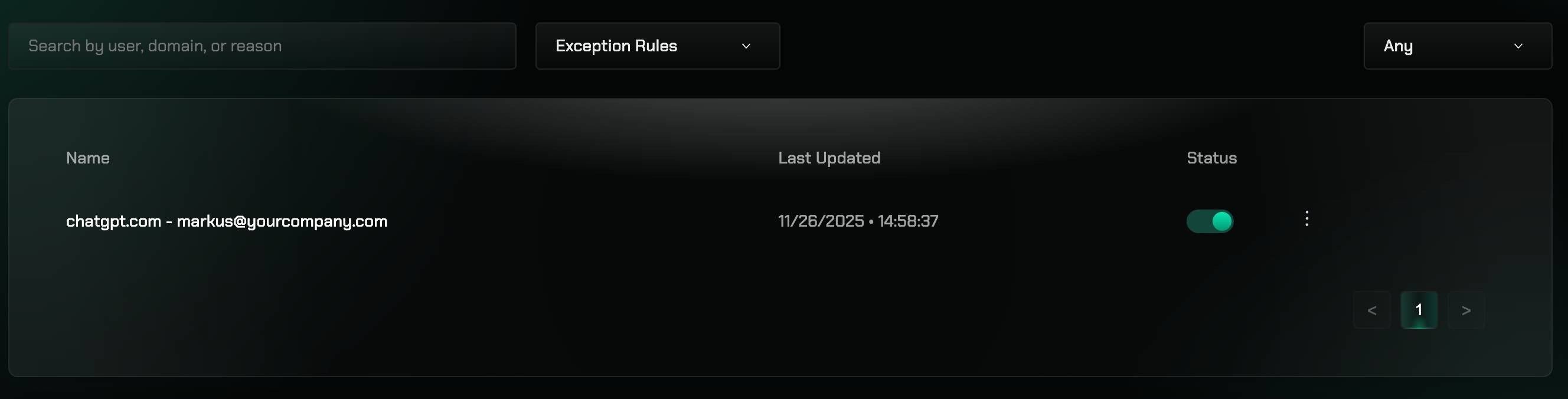
- Request Details: User, requested resource, category, and business justification
- Status: Current status of each exception request (Pending, Approved, Denied)
- Timestamps: When requests were made and last updated
- Active Exceptions: Shows which denied requests are still active and need attention
- Review all exception requests in one place
- Identify which denied requests remain active
- Monitor exception patterns and trends
- Track the lifecycle of exception requests from submission to expiration