

Overview
AI Filters leverage advanced machine learning capabilities to detect and protect sensitive data across your organization. By default, we provide a set of filters that you can use immediately. These predefined filters are designed to detect common types of sensitive information. Additionally, you can create your own custom AI filters tailored to your organization’s specific needs.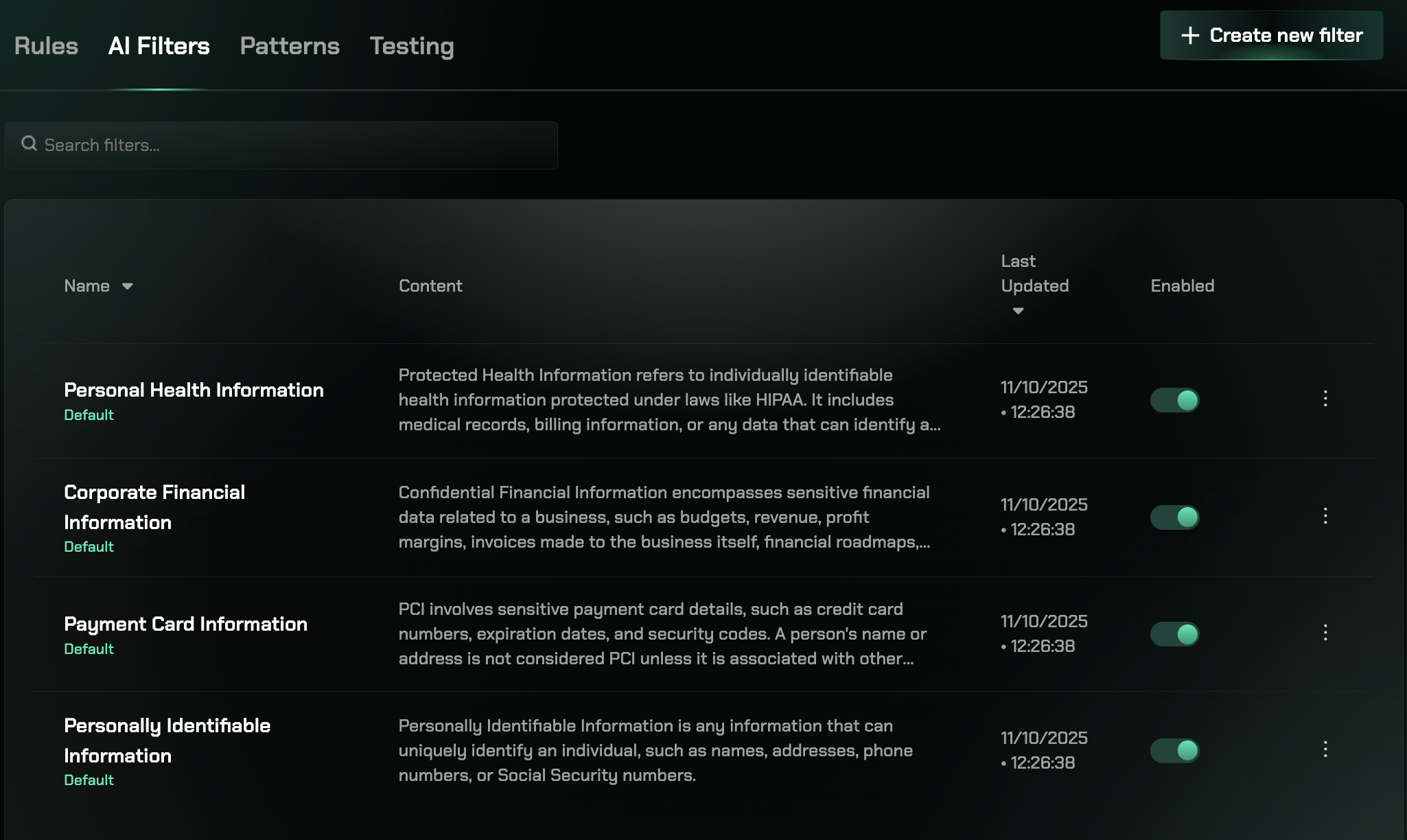
Creating Custom AI Filters
You can create your own AI filters to detect specific types of content, patterns, or sensitive information that are unique to your organization.1
Navigate to AI Filters
Go to the Data Loss Prevention page and select the AI Filters tab.
2
Create a new filter
Click the “Create New Filter” button to start creating your custom AI filter.
3
Describe what to detect
In natural language, describe what you want this filter to detect. Be specific about the type of content, patterns, or sensitive information you want to identify. Since it’s AI-powered, the system will analyze your description and configure the filter accordingly.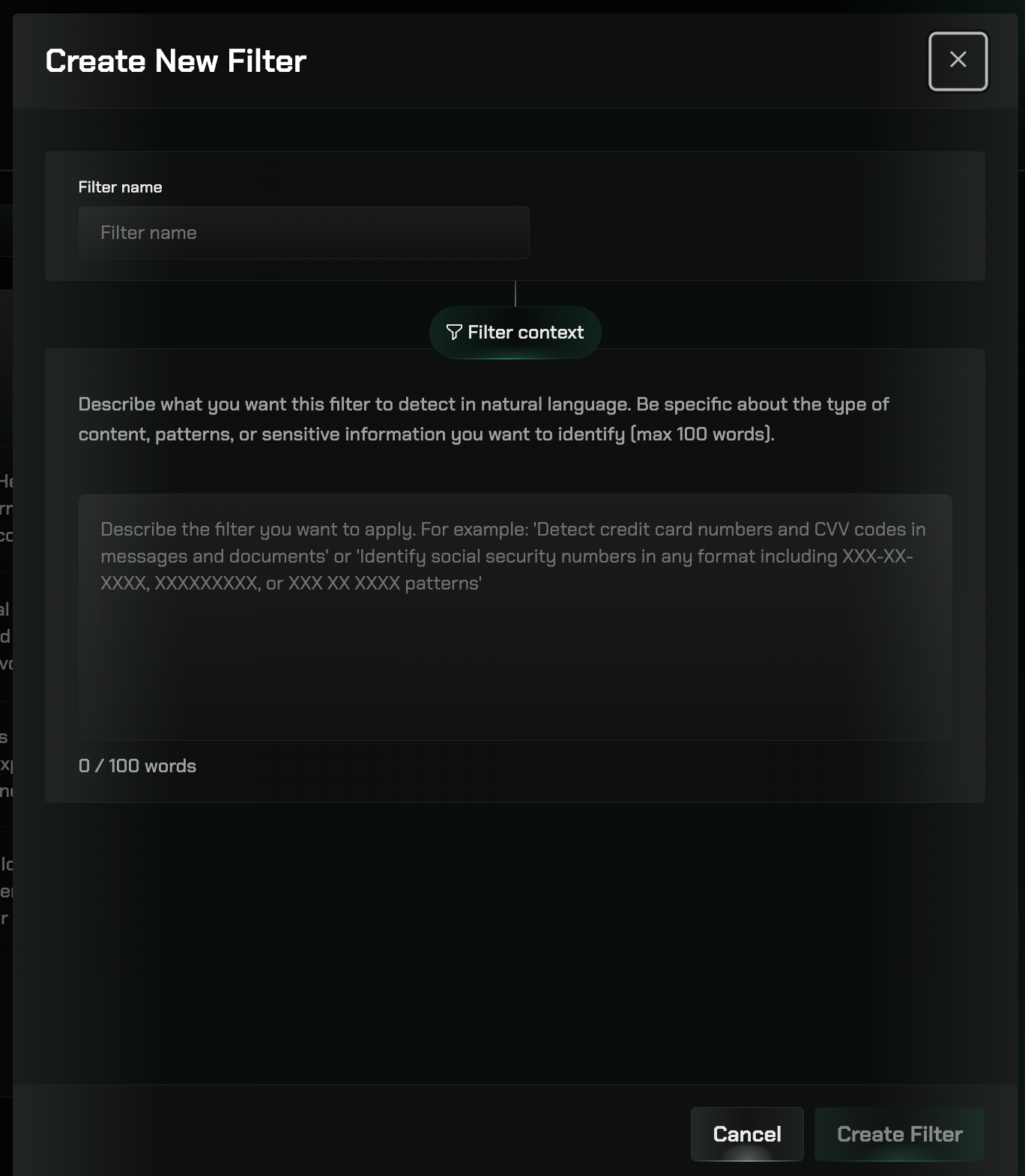
- “Detect customer account numbers in the format ACC-XXXX-XXXX”
- “Identify internal project code names and proprietary terminology”
- “Find financial transaction details and payment information”
4
Save your filter
Once you’ve described what you want to detect, save your filter. The AI will process your description and configure the detection capabilities.
5
Assign to rules
Apply your AI filter to DLP rules to enable detection across your organization.
Using AI Filters in DLP Rules
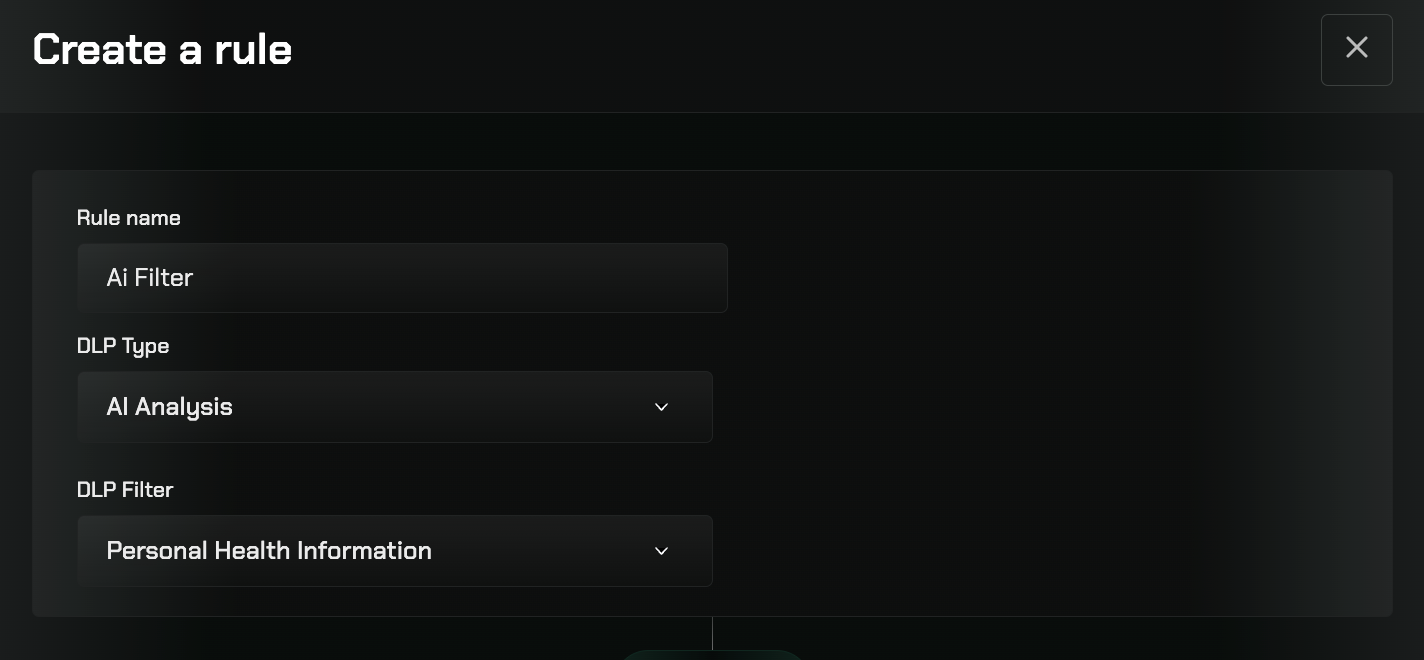
To utilize your AI filter in a DLP rule, navigate to the Data Loss Prevention page and create a new rule. When configuring the rule:- Under DLP Type, select “AI Analysis”
- Under DLP Filter, select the AI filter you created
Related Features
Rules
Configure DLP rules to safeguard sensitive data
Patterns
Configure pattern-based detection for sensitive data
Testing
Test DLP filters against uploaded files before enforcing in production